How it works

Point, talk, apply.

FluidEdits captures what you mean from the live preview: the target UI, your spoken instruction, and enough context for an AI editor to act.

The workflow

Three moves. Zero friction.

From capture to pasted prompt in seconds — stay in flow while you iterate.

Step 01
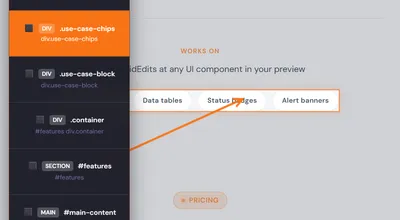
Screenshot: element inspector selecting a row of UI badges (Data tables, Status badges, Alert banners) in the preview.

Point at an element

Press Alt+Shift+E and point at the UI element — a button, a banner, a table row. FluidEdits identifies the target and captures context automatically.

Step 02
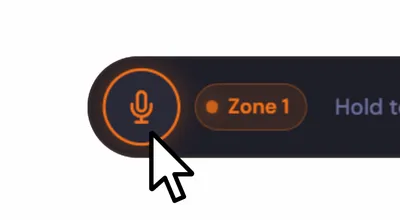
Screenshot: FluidEdits floating toolbar with the microphone control, Zone 1 badge, and hold-to-speak hint.

Speak your edit

Tap the mic and say what you want: "Convert the first column to uppercase" or "Sort by quantity descending."

Step 03
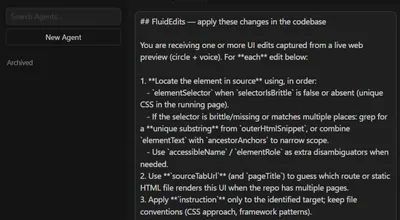
Screenshot: AI agent chat in the editor with FluidEdits instructions pasted and ready to apply.

Copy & paste into your editor

FluidEdits puts the instruction on your clipboard — paste into Cursor, VS Code, Lovable, or any tool that accepts text. Your change lands where you want it.

Why FluidEdits

Built for designers and developers
who edit without switching windows

Perfect prompts, copied for you

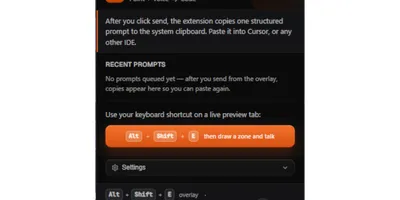
The extension turns each capture into a single, structured instruction — target, spoken intent, and enough context to act — and puts it on your clipboard. Paste into Cursor, VS Code, Lovable, or any chat or editor pane that accepts text — one portable format, no vendor lock-in.

Copy to clipboard — paste anywhere
1targetDescription
2instruction
3Page/route hints
4Locator bundle

Voice-first commands

Describe intent in plain language. No special syntax, no commands to memorize. Just say what the content should become.

Multi-target edits

Make multiple edits in one session. Send them all at once — your editor receives the full multi-region context as a single coherent instruction.

Pending queue

Edits queue up when your editor is busy. The extension badge shows pending count — nothing is lost, nothing fires out of order.

Screenshot: FluidEdits queue with multiple pending edits and a count badge.

Preview auto-refresh

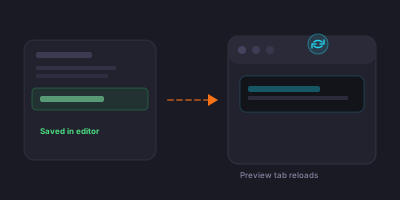
When your editor saves the change, FluidEdits can reload the preview tab you were pointing at — so the page catches up without an extra click. Same URL, fresh DOM, right after the patch lands.

Diagram: edit saved in the editor flows to a browser preview that reloads automatically.

Works on

Point FluidEdits at any UI component in your preview

Hero banners Data tables Status badges Alert banners

POINT · TALK · APPLY Start for free Start editing the way you think

Reserve your beta seat
1 Install extension
2 7-day free trial
3 Pick a plan